
Markdown To Text Converter - Strip Formatting Online
Convert Markdown to plain text by stripping formatting markers from headings, emphasis, lists, and links. Review clean text for reuse in other tools.
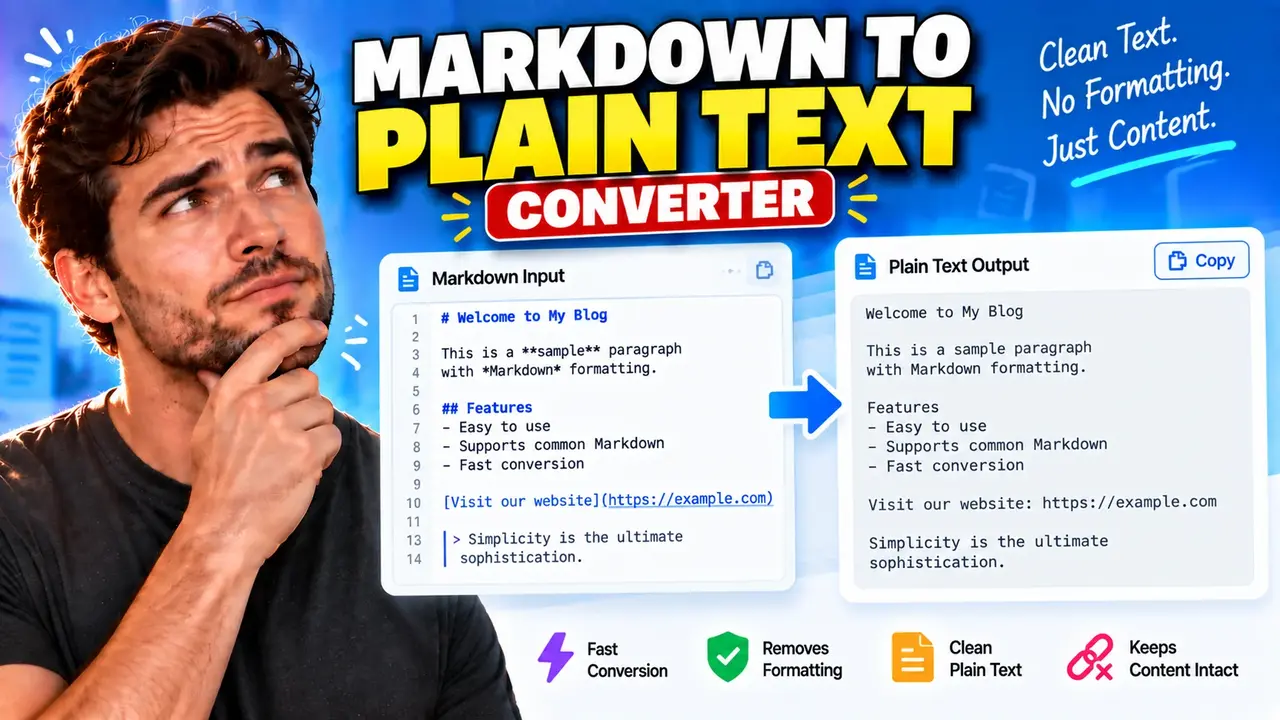
Markdown To Text Converter |Free Online Stripper Tool
A Markdown To Text Converter is an online text utility that helps transform Markdown-formatted content into plain text by removing Markdown syntax such as heading markers, bold and italic delimiters, link notation, and list formatting. It is useful for preparing readable text for documents, email drafts, text-only editors, content analysis, and systems that do not require Markdown formatting.
Quick answer: Use the Markdown To Text Converter to turn Markdown-formatted text into a plain-text version without its Markdown presentation syntax. Review the result to ensure that links, code, tables, and other structured content retain the information you need.
What Does the Markdown To Text Converter Do?
Markdown is a lightweight markup language that uses ordinary characters to describe document structure and emphasis. For example, a heading may begin with a hash symbol, bold text may be surrounded by double asterisks, and a link may contain a destination URL inside parentheses. These markers are helpful when writing formatted content, but they can become unnecessary when the intended output is plain text.
The Markdown To Text Converter is intended for this cleanup task. It provides a workflow for converting Markdown source into text that is easier to reuse in plain-text environments. The precise treatment of advanced Markdown syntax depends on the converter's implementation, so users should inspect the output when working with complex documents.
Typical Markdown elements include:
- Headings: Markers such as
#,##, and###. - Emphasis: Asterisks and underscores used for bold or italic text.
- Links: Bracketed link labels followed by destination URLs.
- Lists: Hyphens, asterisks, plus signs, or ordered-list numbers.
- Blockquotes: Lines beginning with the greater-than symbol.
- Inline code: Text surrounded by backticks.
- Fenced code blocks: Code enclosed by triple backticks or another supported fence.
How to Use Markdown To Text Converter?
- Enter Markdown content: Paste the Markdown source into the tool's input area.
- Run the conversion: Use the available conversion control to process the input.
- Review the output: Check that the resulting plain text preserves the words, numbers, URLs, and structure you want to retain.
- Reuse the text: Copy or export the result using the options available in the actual tool interface.
For the most reliable result, start with a short representative sample. Include headings, links, emphasis, lists, and code if those elements occur in your document. This makes it easier to identify how the converter treats different types of Markdown before processing a longer document.
Input and Output Example
Consider the following Markdown input:
# Project Notes

This is **important** information for the team.

Visit [the project website](https://example.com) for details.

- Review the requirements
- Update the documentation

Use `npm run build` to build the project.
A possible plain-text result is:
Project Notes

This is important information for the team.

Visit the project website for details.

Review the requirements
Update the documentation

Use npm run build to build the project.
This example illustrates a common stripping approach: remove Markdown presentation markers while retaining readable words. It is an illustrative expected transformation, not a guarantee that every converter uses the same rules. Some implementations preserve link destinations, table separators, list numbering, or code fences differently.
Markdown Syntax Reference Table
The following table shows common Markdown patterns and a typical plain-text treatment. The exact output depends on the converter's supported syntax and processing rules.
| Markdown element | Example input | Typical plain-text treatment |
|---|---|---|
| Heading | ## Installation |
Installation |
| Bold | **Important** |
Important |
| Italic | *Note* |
Note |
| Inline code | `config.json` |
config.json |
| Link | [Documentation](https://example.com) |
Documentation, optionally with its URL |
| Unordered list | - First task |
First task |
| Ordered list | 1. Install the package |
Install the package, optionally retaining numbering |
| Blockquote | > Read the instructions |
Read the instructions |
| Horizontal rule | --- |
Usually removed as a presentation separator |
| Image |  |
Alt text may remain; image URLs may be omitted or retained |
How Markdown-to-Plain-Text Conversion Works
Markdown-to-text conversion generally involves identifying markup patterns and removing or transforming the syntax that controls presentation. A simple implementation may use string replacement or regular expressions. A more comprehensive implementation may parse Markdown into a document structure and extract its textual content.
These approaches can produce different results. Removing asterisks may work for simple emphasis, but blindly removing characters can damage legitimate text, programming examples, or unusual combinations of Markdown syntax. A parser-based conversion can better distinguish structural markers from literal characters, although the result still depends on the Markdown dialect and the features implemented.
- Syntax recognition: Identifies supported Markdown markers and structures.
- Markup removal: Removes or transforms presentation delimiters.
- Text preservation: Retains meaningful words, numbers, and punctuation.
- Whitespace handling: Determines how paragraphs, headings, and lists are separated.
- Output review: Helps identify missing URLs, lost table relationships, or damaged code examples.
For background on the source format, consult the CommonMark specification, which documents a widely used Markdown syntax standard. For a practical implementation reference, see the markdown-it project documentation. These resources explain Markdown parsing and syntax; they do not establish which features this particular online converter implements.
Technical Edge Cases and Limitations
Plain-text conversion is not always a one-to-one transformation. Markdown carries structural information that may be meaningful even after visual formatting is removed. Review the following cases when preparing important content.
- Links: Removing link syntax may retain only the clickable label and discard the destination URL. If the URL matters, verify that it appears in the output.
- Images: An image reference contains alternative text and a source path. A converter may preserve the alternative text, remove the entire image expression, or retain the path.
- Tables: Markdown table pipes and separator rows can be removed, but doing so may make columns difficult to distinguish. Review tabular output separately.
- Code blocks: Removing code fences can make code easier to read as text, but it may also remove important boundaries between code and surrounding prose.
- Nested lists: Stripping indentation and markers can flatten parent-child relationships between list items.
- HTML inside Markdown: Embedded HTML may require additional processing. Removing Markdown markers alone does not necessarily remove HTML tags.
- Empty input: An empty source provides no text to convert. The behavior of the tool's interface depends on its implementation.
- Malformed or extended Markdown: Unclosed delimiters, footnotes, mathematical notation, and custom extensions may not be handled consistently by basic converters.
Supported Syntax and Compatibility Considerations
Common Markdown syntax includes headings, emphasis, links, lists, blockquotes, code spans, fenced code blocks, and tables. However, the supplied tool information does not establish a verified list of supported Markdown features or dialects for this particular implementation.
Before relying on a conversion for publication or automated processing, test representative input from your actual source. This is particularly important for GitHub Flavored Markdown tables, task lists, footnotes, embedded HTML, and mathematical expressions. Do not assume that every extension defined by a Markdown processor will be interpreted identically by a plain-text stripper.
Plain Text Versus Markdown
| Characteristic | Markdown | Plain text |
|---|---|---|
| Formatting markers | Uses syntax such as asterisks and hash symbols | Usually removes presentation-specific markers |
| Document structure | Can represent headings, lists, links, and tables | Relies mainly on words, line breaks, and spacing |
| Links | Can associate a label with a destination URL | May retain the label, URL, or both |
| Code | Can mark inline code and fenced blocks | Displays characters without Markdown formatting semantics |
| Typical use | Documentation, notes, and formatted text sources | Text-only systems, content extraction, and simple text reuse |
Frequently Asked Questions
Does converting Markdown to plain text remove all formatting?
The goal is to remove Markdown presentation syntax. The exact treatment of HTML, tables, links, images, and extended Markdown depends on the converter's implementation.
Will hyperlinks remain in the converted text?
The visible link label may remain while the destination URL is removed. If you need both, inspect the result or use a conversion method that explicitly preserves link destinations.
Can I convert Markdown code examples?
Yes, code examples can be included as input, but stripping code fences and inline backticks may change how the code is separated from surrounding text. Review the output before reusing code.
Does plain-text conversion preserve Markdown tables?
Not necessarily in their original structure. Removing table delimiters may flatten rows and columns, so content that depends on column relationships should be checked after conversion.
What happens to Markdown images?
Image syntax includes alternative text and a source path. Depending on the conversion rules, the output may retain the alternative text, the URL, both, or neither.
Is the converter suitable for every Markdown dialect?
Compatibility depends on the syntax implemented by the tool. Test extended features such as task lists, footnotes, mathematical expressions, and embedded HTML before processing a complete document.
Author Information
Author Name: Jordan Mitchell
Author Description: Software Engineer specializing in text processing, document formats, and developer productivity utilities.
Technical Review: This content describes general Markdown-to-plain-text transformation principles and common edge cases. The exact implementation-specific behavior should be confirmed against the deployed converter.